
GUIDE
How to write and draw on the screen
Slide out the SlideInk panel to jot down a thought, sketch something or highlight what matters. Right over what you have open, without switching apps.

Free on Google Play. No account, no ads.
4 simple steps
-
Open the panel
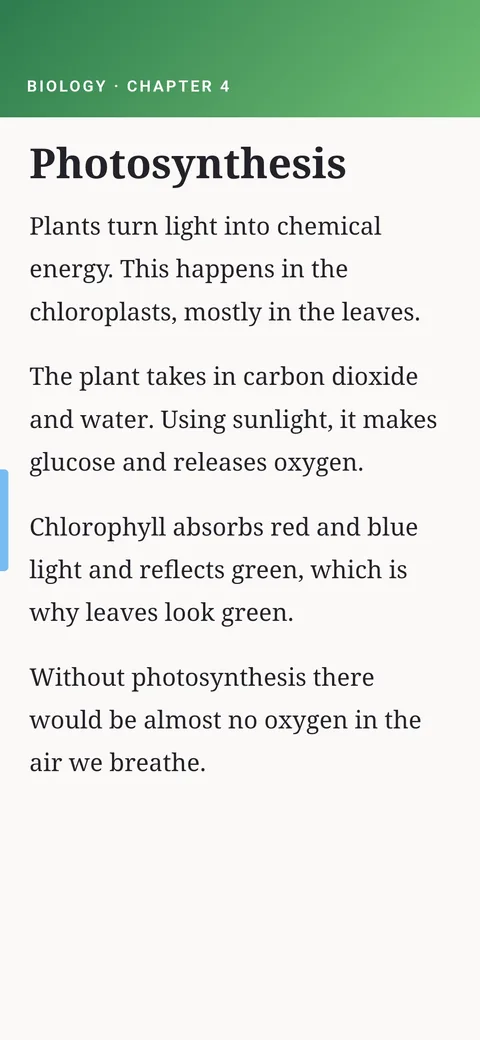
Tap the SlideInk handle at the edge of the screen or drag it towards the middle.
-
Choose a tool
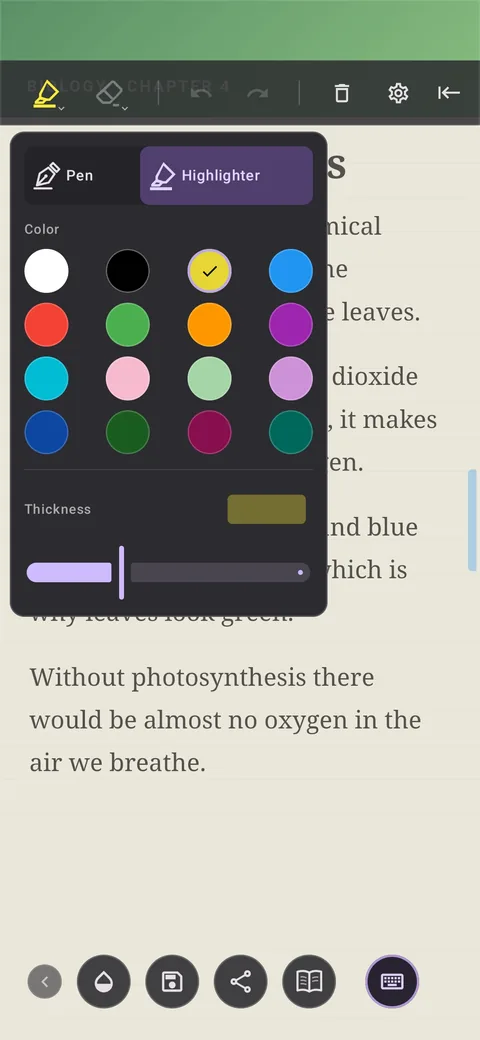
Tap the pen icon. Choose the pen or the highlighter and set the color and thickness.
-
Write and draw
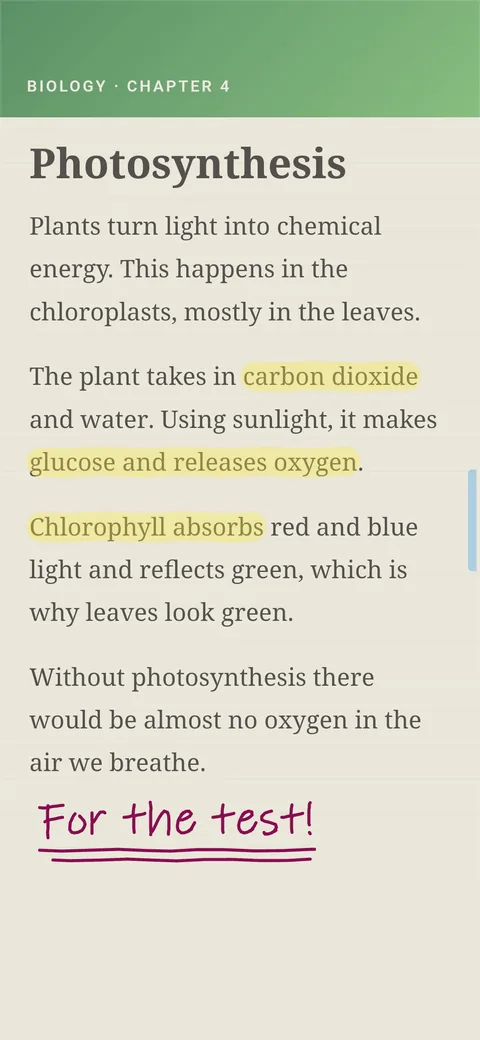
Use your finger or a stylus. If you make a mistake, use the eraser or the curved arrow to undo the last stroke.
-
Save or send the note
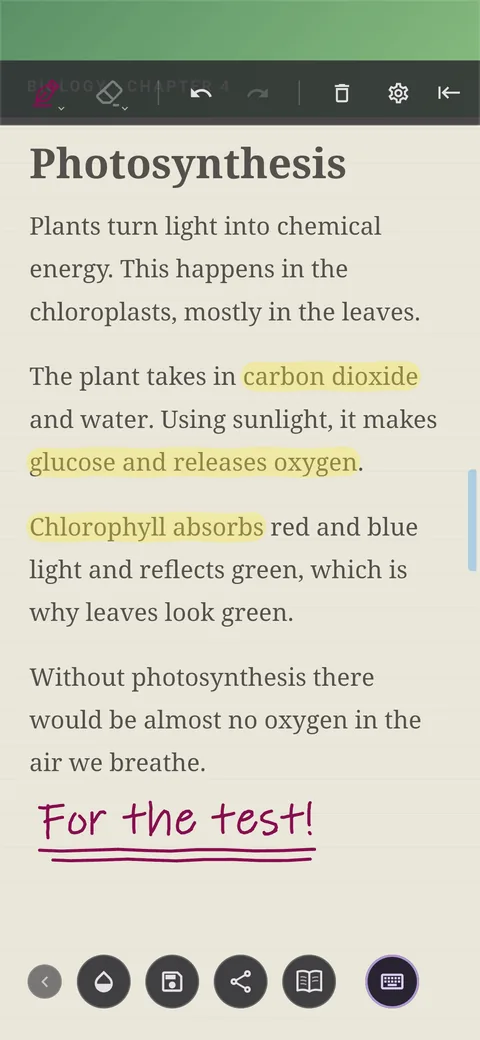
Tap the floppy disk icon and the note is saved to the Library. With Share you can send it on. Only your note is sent, without the content of the app underneath.
Tips
- If you prefer typing, tap the keyboard icon.
- If you can’t see the content under the note, adjust the background opacity.
- When you want to carry on in the app under the note, collapse the panel. Your unfinished note stays.
- To start over, tap the trash icon. SlideInk asks before it deletes the whole note.
Frequently asked questions
Does this change the article or the app under the note?
No. Your lines and notes stay in SlideInk. They don’t change the article or the app underneath.
Is what I see under the note saved too?
No. Only your note is saved. The content of the app underneath is neither saved nor sent when you share.
Is SlideInk free?
Yes. Notes and drawing are free. You can try reminders free for 14 days. If you want to keep creating new ones after that, you can buy SlideInk PRO. You pay only once, with no subscription.
Which devices does SlideInk work on?
On phones and tablets with Android 7 or newer. When you first start it, allow it to display over other apps so the panel can open over them.
Try it right now
Get SlideInk from Google Play and capture ideas right on the screen. Writing and drawing are free.