
GUIDE
How to write a shopping list over a recipe
Slide out the SlideInk panel over the recipe and write down the ingredients you’re missing at home. Save the list and simply open it in the store.

Free on Google Play. No account, no ads.
4 simple steps
-
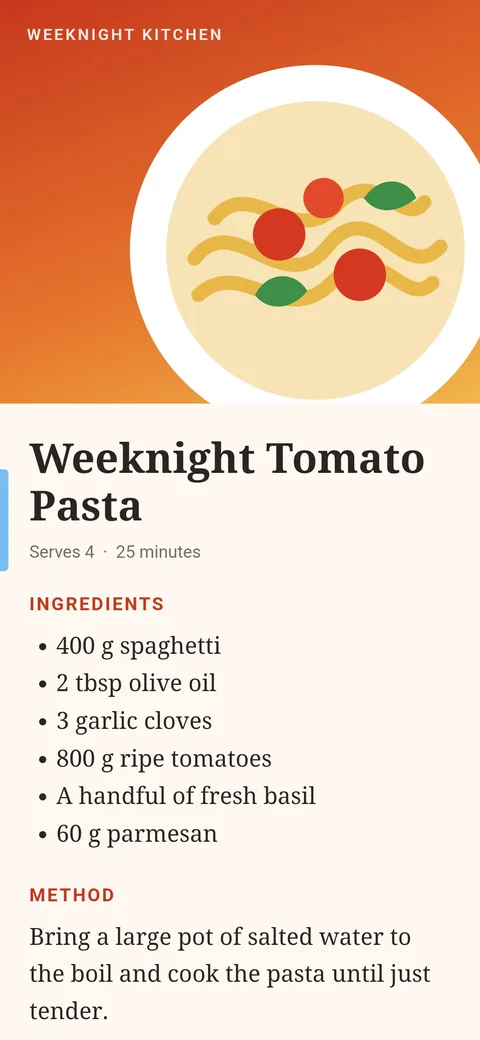
Open the panel
Tap the SlideInk handle at the edge of the screen or drag it towards the middle.
-
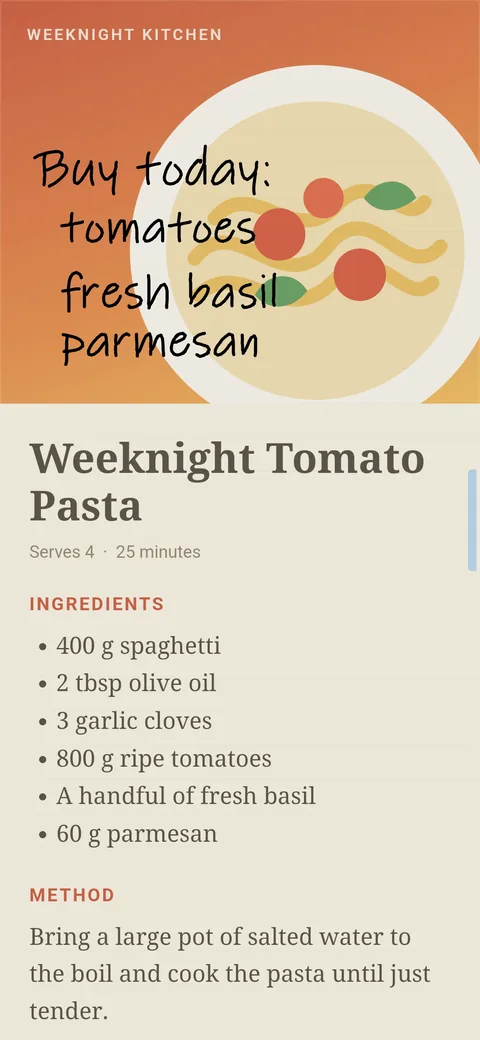
Write down what to buy
Write with your finger or a stylus right over the recipe. If you prefer the keyboard, tap its icon.
-
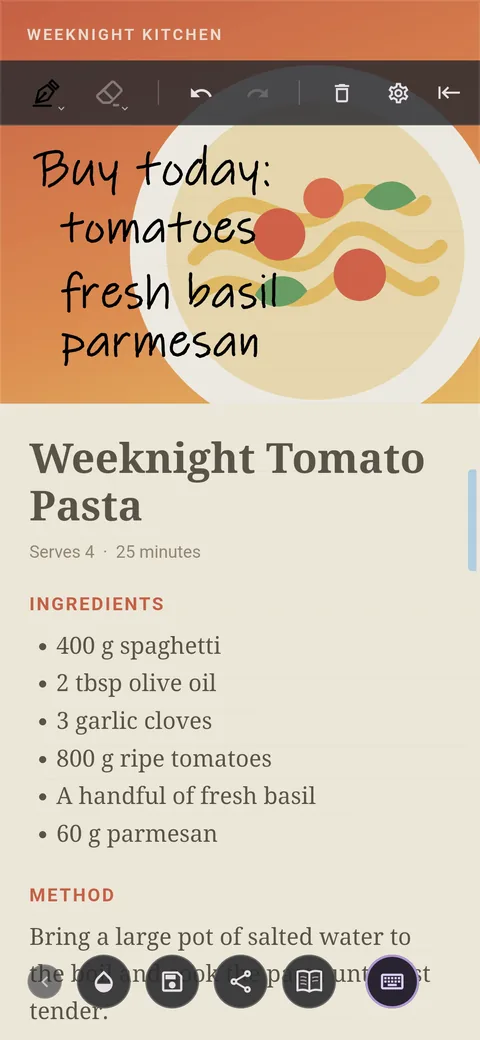
Save the list
Tap the floppy disk icon. The list is saved to the Library. With “Name and file” you can call it, for example, “Shopping”.
-
Open the list in the store
Tap the book icon in the panel. In the Library, pick your list and check what you need to buy.
Tips
- Mark the list as a favorite so it’s easier to find.
- With the “Note actions” widget you open the Library straight from the home screen.
- If you can’t see the recipe under the list well, adjust the background opacity.
Frequently asked questions
Will I still have the list after I close the recipe?
Yes. Once you save the list, you’ll find it in the SlideInk Library even after you close the recipe.
Can I send the list to someone?
Yes. Send it with Share, for example in a message. Only your list is sent, without the recipe underneath.
Is SlideInk free?
Yes. Notes and drawing are free. You can try reminders free for 14 days. If you want to keep creating new ones after that, you can buy SlideInk PRO. You pay only once, with no subscription.
Which devices does SlideInk work on?
On phones and tablets with Android 7 or newer. When you first start it, allow it to display over other apps so the panel can open over them.
Get your shopping list ready
Get SlideInk from Google Play and write down what you need to buy. Writing and drawing are free.