
GUIDE
How to set a reminder
Slide out the SlideInk panel, write what you need to do and set a time. The reminder shows up even while you’re using another app.

Free on Google Play. No account, no ads.
4 simple steps
-
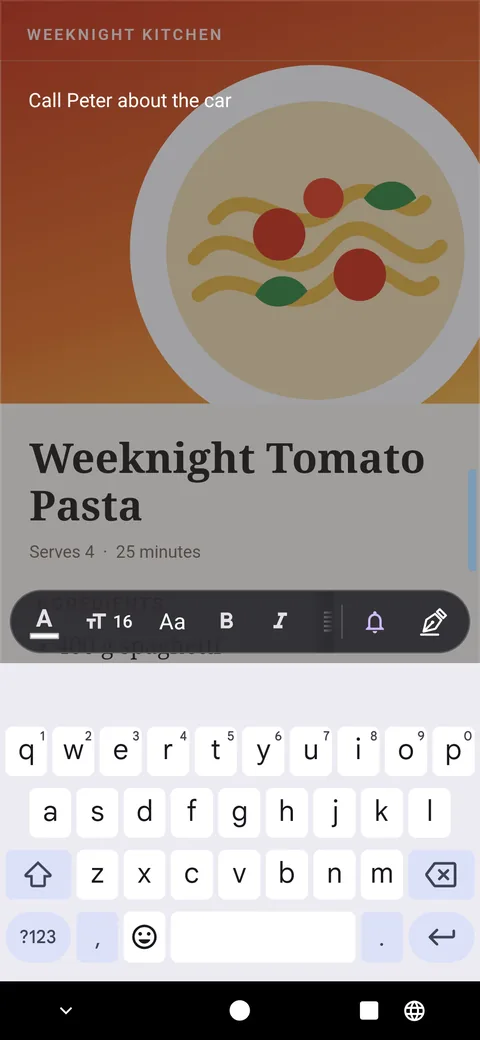
Write what you don’t want to forget
Open the SlideInk panel and tap the keyboard icon. Type, for example, “Call Peter about the car”.
-
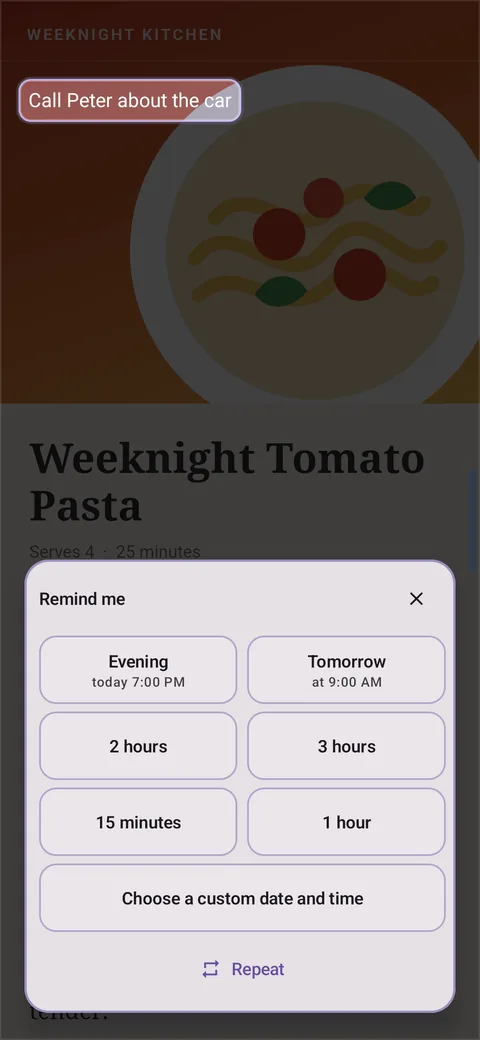
Pick a time
Tap the bell and choose when the reminder should go off. For example in an hour, in the evening or tomorrow. You can also set your own date and time.
-

Get it done or snooze it
When the reminder appears, you can tap Done. If it doesn’t suit you right now, use Snooze to pick a later time.
-
See your saved reminders
Open the Library and choose Reminders. You’ll find both scheduled and completed reminders there.
Tips
- When SlideInk asks for permission to show notifications, allow it.
- Also turn on precise reminders if the app offers them. Without this permission a reminder may arrive late.
- If the reminder should repeat regularly, use the Repeat option.
- On the lock screen you may see only “Reminder”. Whether you also see its text depends on your phone’s settings.
Frequently asked questions
Are reminders free?
From your first saved reminder you can create them free for 14 days. If you want to keep adding new ones after that, you can buy SlideInk PRO. You pay only once, with no subscription. Reminders you’ve already saved keep working.
Can I write a reminder by hand?
In the panel, type it on the keyboard. SlideInk doesn’t turn a handwritten note into a reminder.
What if the reminder doesn’t suit me right now?
Tap Snooze and choose when it should remind you again.
Which devices does SlideInk work on?
On phones and tablets with Android 7 or newer. When you first start it, allow it to display over other apps so the panel can open over them.
Try your first reminder
Get SlideInk from Google Play. Notes and drawing are free. You can try reminders free for 14 days.