
GUIDE
How to take notes while you play
Slide out the SlideInk panel over the game and jot down what you need: possible numbers in sudoku, a word for the crossword or an idea for your next move.

Free on Google Play. No account, no ads.
4 simple steps
-
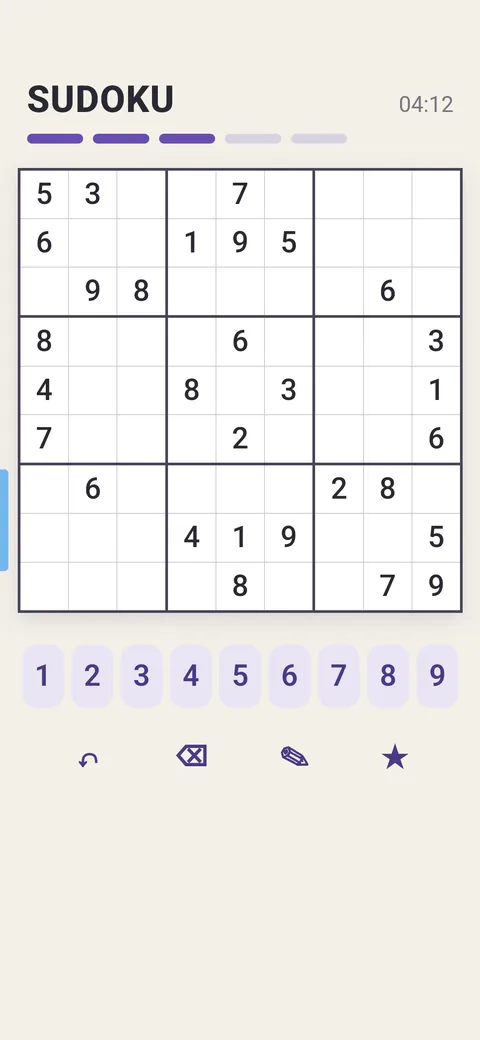
Open the panel
Tap the SlideInk handle at the edge of the screen or drag it towards the middle.
-
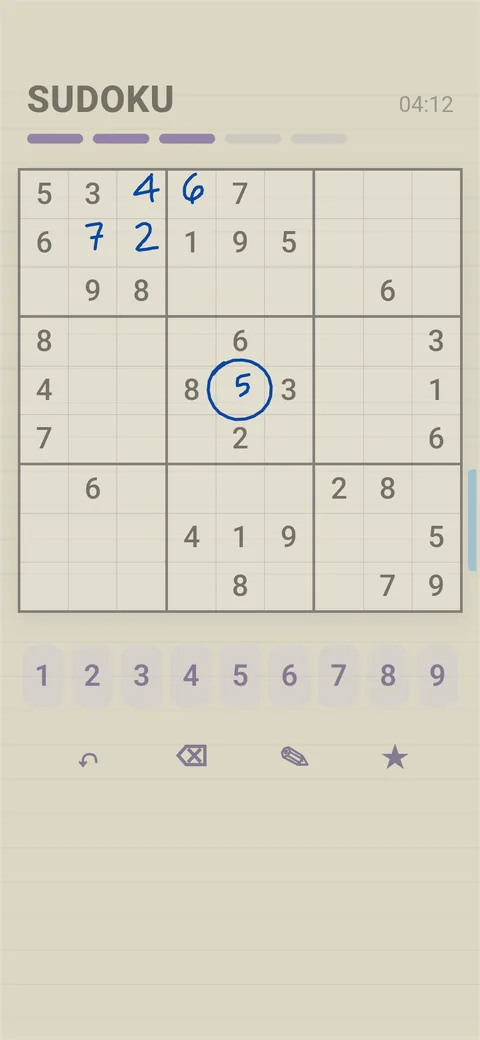
Write your notes
With your finger or a stylus, write numbers, draw an arrow or circle a cell.
-
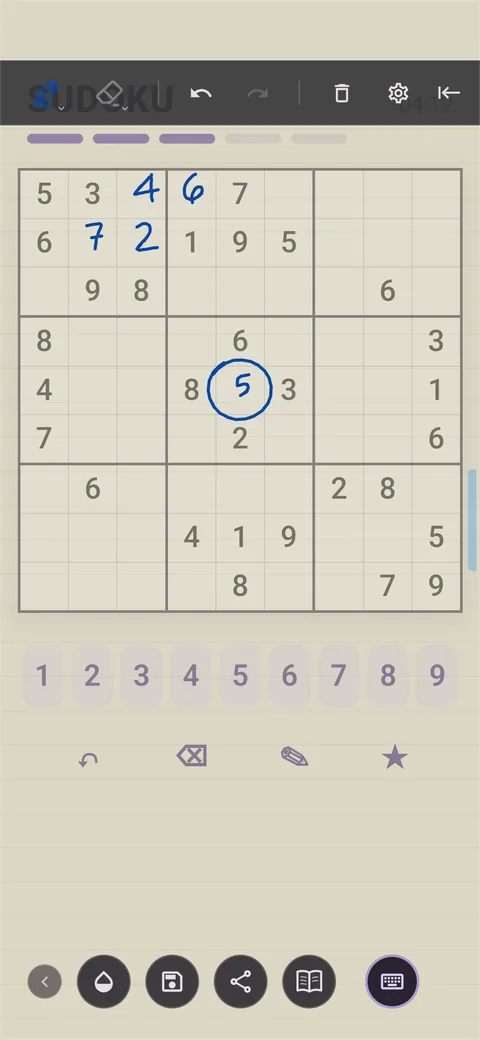
Collapse the panel and keep playing
Collapse the SlideInk slide-out panel. The notes are hidden and you can control the game again.
-
Go back to your notes
When you need them, open the panel again. Your unfinished notes are still there.
Tips
- If you can’t see the game under your notes well, adjust the background opacity.
- If the game board moves or changes, your notes stay in the same place on the screen.
- To keep your notes for later, tap the floppy disk. They’re saved to the Library.
- To start over, tap the trash icon. SlideInk asks before it deletes the whole note.
Frequently asked questions
Do my notes get written into the game?
No. They stay in SlideInk. For example, a number written over the sudoku won’t fill in the cell in the game by itself.
When do I write and when do I control the game?
While the panel is open, you write notes. When you collapse the panel, you can keep playing.
Is SlideInk free?
Yes. Notes and drawing are free. You can try reminders free for 14 days. If you want to keep creating new ones after that, you can buy SlideInk PRO. You pay only once, with no subscription.
Which devices does SlideInk work on?
On phones and tablets with Android 7 or newer. When you first start it, allow it to display over other apps so the panel can open over them.
Try it in your next game
Get SlideInk from Google Play and keep your notes at hand while you play too. Writing and drawing are free.