
GUIDE
How to add a widget to your home screen
With a widget, SlideInk is always at hand right on your phone’s home screen. With one tap you open a note for writing or drawing, or look through your saved notes.

Free on Google Play. No account, no ads.
4 simple steps
-
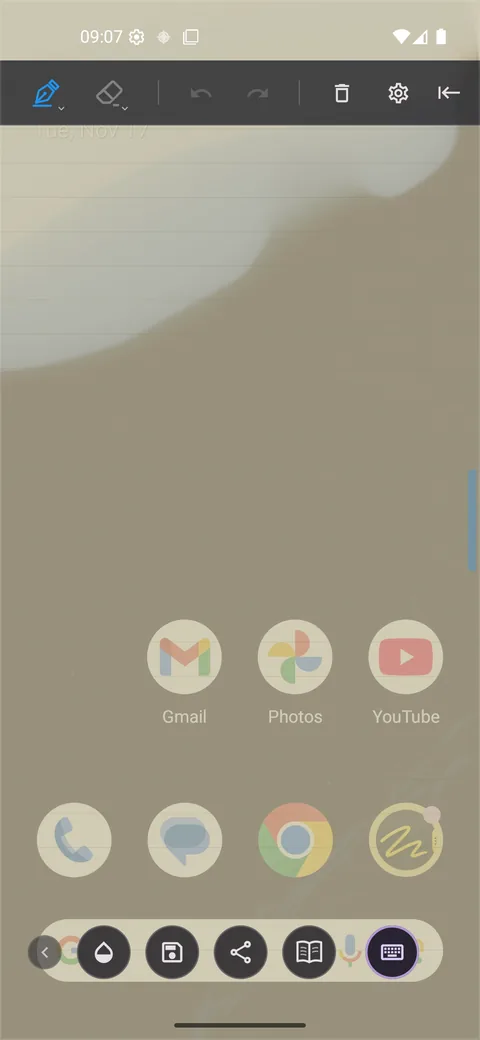
Open the SlideInk settings
Slide out the panel and tap the gear icon.
-
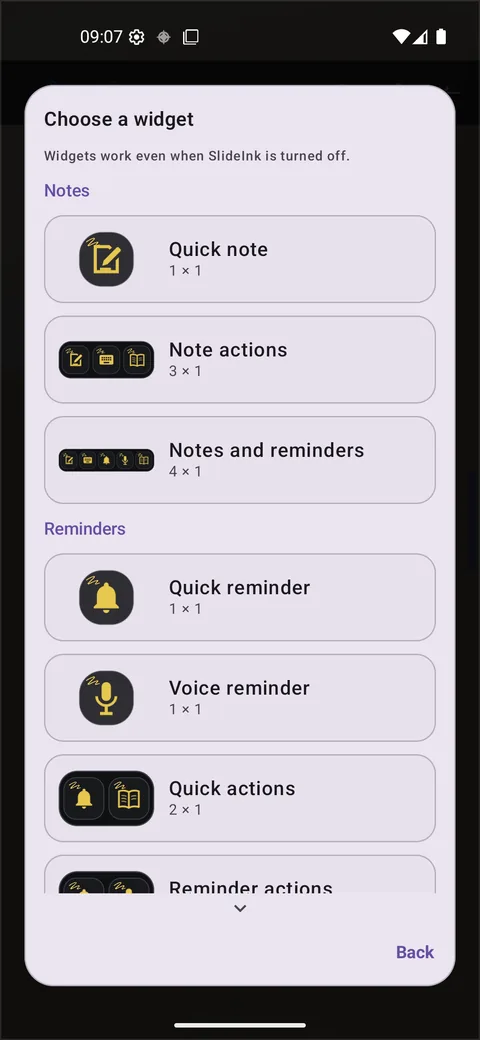
Choose a widget
Tap Widgets and choose the one you want on your home screen.
-
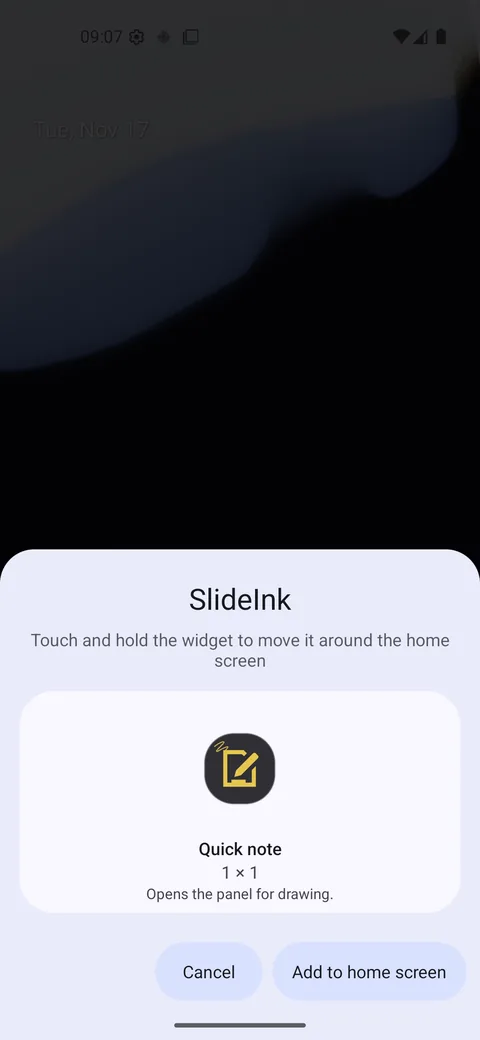
Confirm adding it
Confirm adding the widget to your home screen. If your phone doesn’t support this, SlideInk shows you how to add it from the home screen.
-
Open a note
Tap the widget you added. “Quick note” opens the panel for handwriting and drawing. In the “Note actions” widget you choose drawing, typing with the keyboard or the Library.
Tips
- If you have a note in progress, the widget takes you back to it.
- You can stretch the “Notes and reminders” widget to two rows. The top book then opens your notes and the bottom one your reminders.
- You can also add a widget from the home screen. Touch and hold an empty spot, open Widgets and find SlideInk.
Can you do it without a widget?
Yes. You can also open the panel with the handle at the edge of the screen. The widget lets you open a note right from your phone’s home screen.
Frequently asked questions
Are the widgets free?
Note widgets are free. You can create reminders free for 14 days from saving your first one. After that, you need SlideInk PRO to create new ones. Reminders you’ve already saved keep working.
Does the handle have to be turned on?
No. The widget opens the panel even when you’ve turned SlideInk off with its switch and the handle isn’t shown.
Which devices does SlideInk work on?
On phones and tablets with Android 7 or newer. When you first start it, allow it to display over other apps so the panel can open over them.
Add SlideInk to your home screen
Get SlideInk from Google Play and keep your notes at hand. Writing, drawing and note widgets are free.